Import a web page
Import a web article or PDF as a Topic you can read incrementally.
Before you begin
Section titled “Before you begin”- Kioku imports into the active Collection. Switch Collections first if you want the Topic somewhere else.
- A web page must use an
http://orhttps://address. Other schemes are rejected with Invalid URL. Only http:// and https:// URLs are supported. - Importing creates a Source, the imported document, which Kioku reads as a Topic. For why reading happens a little at a time, see Incremental reading.
The quickest route is straight from the Dashboard:
- Paste a URL into the Import to read field (it shows Paste an article or PDF URL…) and select Import. Kioku imports the page as a static snapshot and opens it in the Reader.
To read a page first, go through the Reader instead:
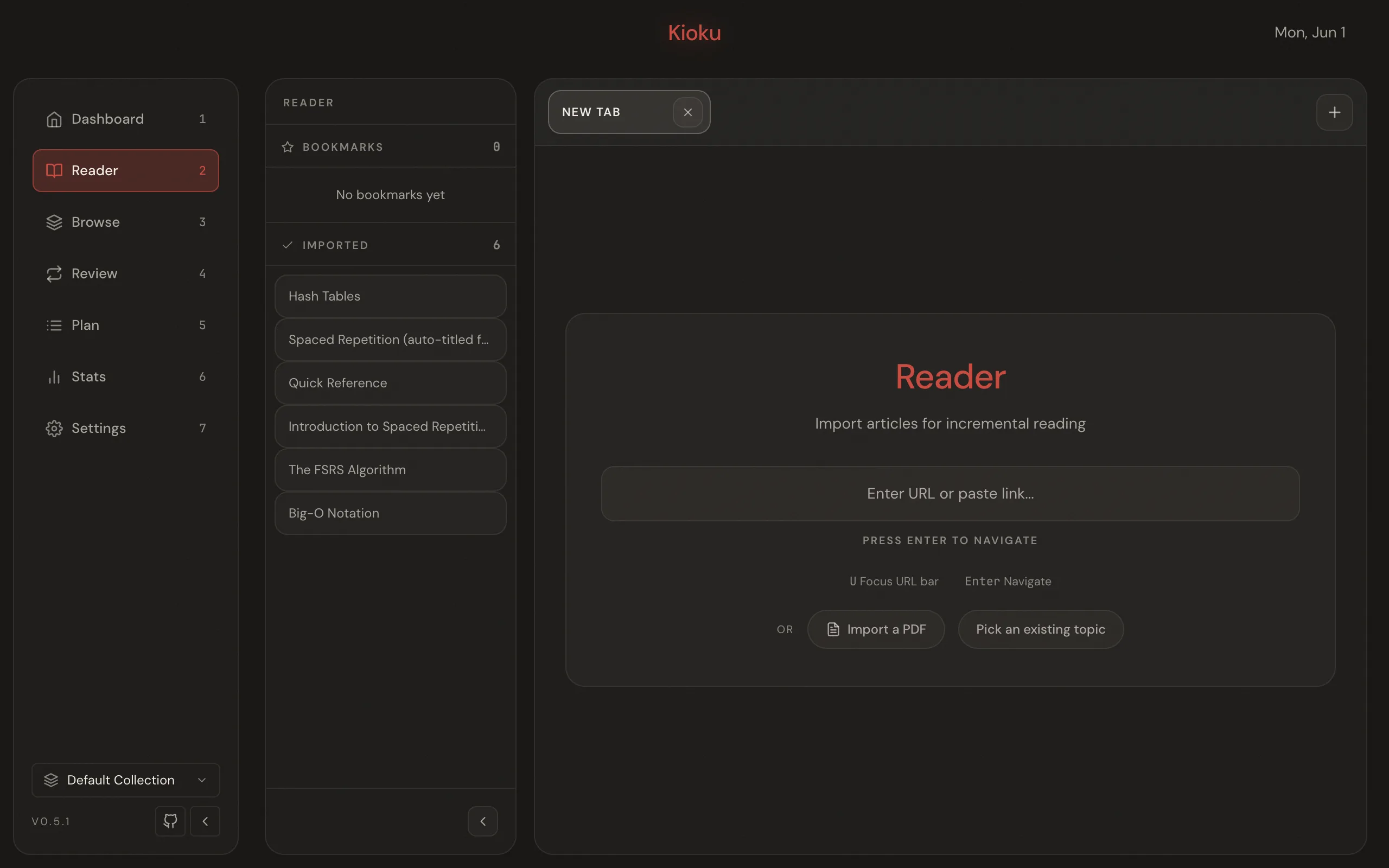
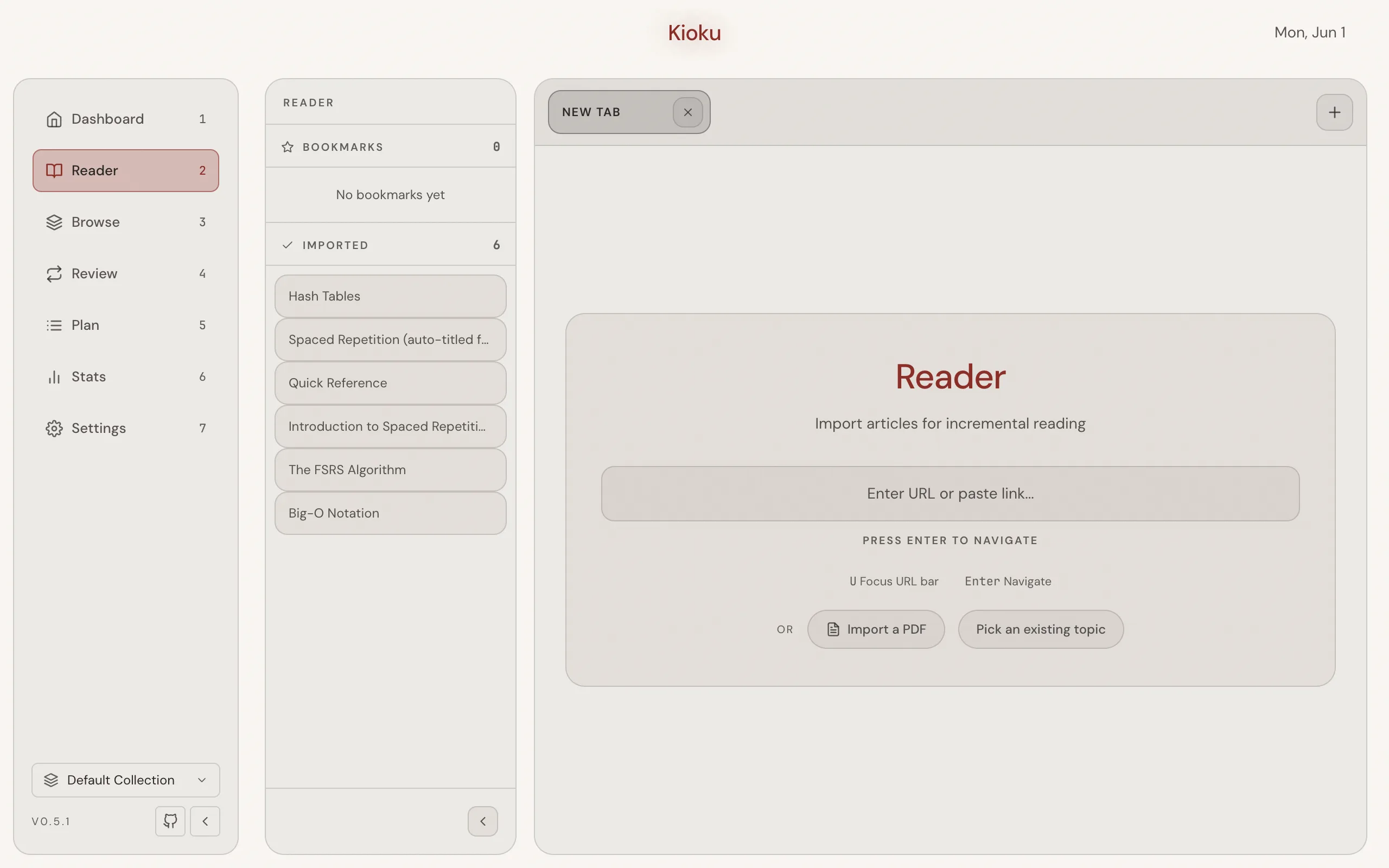
- From the Dashboard, select Open without importing. You can also open the Reader and type a web address, or words to search for, into Search or enter a web address…, then press Enter.
- With the page loaded, select Import in the Reader toolbar (or press I). Kioku saves a static snapshot and the button becomes an Imported label. Pressing X or Z on a page you haven’t imported imports it the same way first.
- To import as a live page instead, open the menu next to Import and choose Import options (static or live)…. In the Import Page dialog, choose Static Import or Live Import (see Static vs live import), and check Remember for <domain> to use that mode for every import from the site.
Kioku imports only public web pages and rejects private, local, and non-web addresses, including after redirects. It cleans imported pages down to plain, readable content and removes active and embedded content.
Static vs live import
Section titled “Static vs live import”The dialog has two modes, and the choice is permanent for that Source unless you re-import:
- Static Import saves a snapshot of the page content so you can review it offline. Use this for articles whose content is stable and that you want to keep even if the original goes away.
- Live Import saves only the URL and opens the live page during review, with your previous Extracts re-highlighted. Use this for pages that change over time.
When Live Import is selected, a nested Thread Mode checkbox appears. Thread Mode lets you navigate within the same site during review without being prompted to import each page. This is useful for reading threads such as Twitter or Reddit comments. Thread Mode applies only to Live imports; it is ignored for Static imports.
Formulas
Section titled “Formulas”A Static Import keeps a page’s formulas as formulas: from Wikipedia, arXiv papers, and pages that typeset math with KaTeX or MathJax. They are drawn with a bundled math font in the theme’s text color, so they read on a dark theme and offline. A formula is one unit in the editor: you can delete or move it, but not type inside it. Pages that ship formulas only as TeX source, typeset by a script in your browser, keep the TeX as text.
Import a PDF
Section titled “Import a PDF”PDFs are always imported as Static Topics. There is no Live option, and the Import Page dialog does not appear. Import one of these ways:
- In the Reader’s empty state, select Import a PDF and choose a file in the Select PDF picker.
- Drag a single PDF from Finder or Explorer onto the Reader’s empty-state panel, which shows Drop a PDF to import.
- Open the command palette and run Import PDF.
- Paste a URL whose path ends in
.pdfinto any URL bar. Kioku detects the PDF and imports it directly, without the static/live choice.
Result
Section titled “Result”The page or PDF is saved as a Topic in the active Collection. It appears in your review Queue for incremental reading, and the Reader toolbar shows Imported. Re-importing the same URL updates the existing Topic rather than creating a duplicate.