Pages
Kioku’s pages are listed across the top of the window, in the top bar. Switch between them by clicking one or pressing the number key shown for each page below. The Kioku name at the left goes to the Dashboard. At the right end are the collection you’re in, a Help menu (keyboard shortcuts, documentation, what’s new, the version) and Settings. In a narrow window the bar drops the collection’s name, then the pages’ names, keeping their icons.
The number keys map to the top bar’s order: 1 Dashboard, 2 Reader, 3 Browse, 4 Review, 5 Plan, 6 Stats, 7 Settings. These bindings are rebindable; see Customize shortcuts.
Dashboard
Section titled “Dashboard”Nav key: 1. The launch page, shown when Kioku starts.
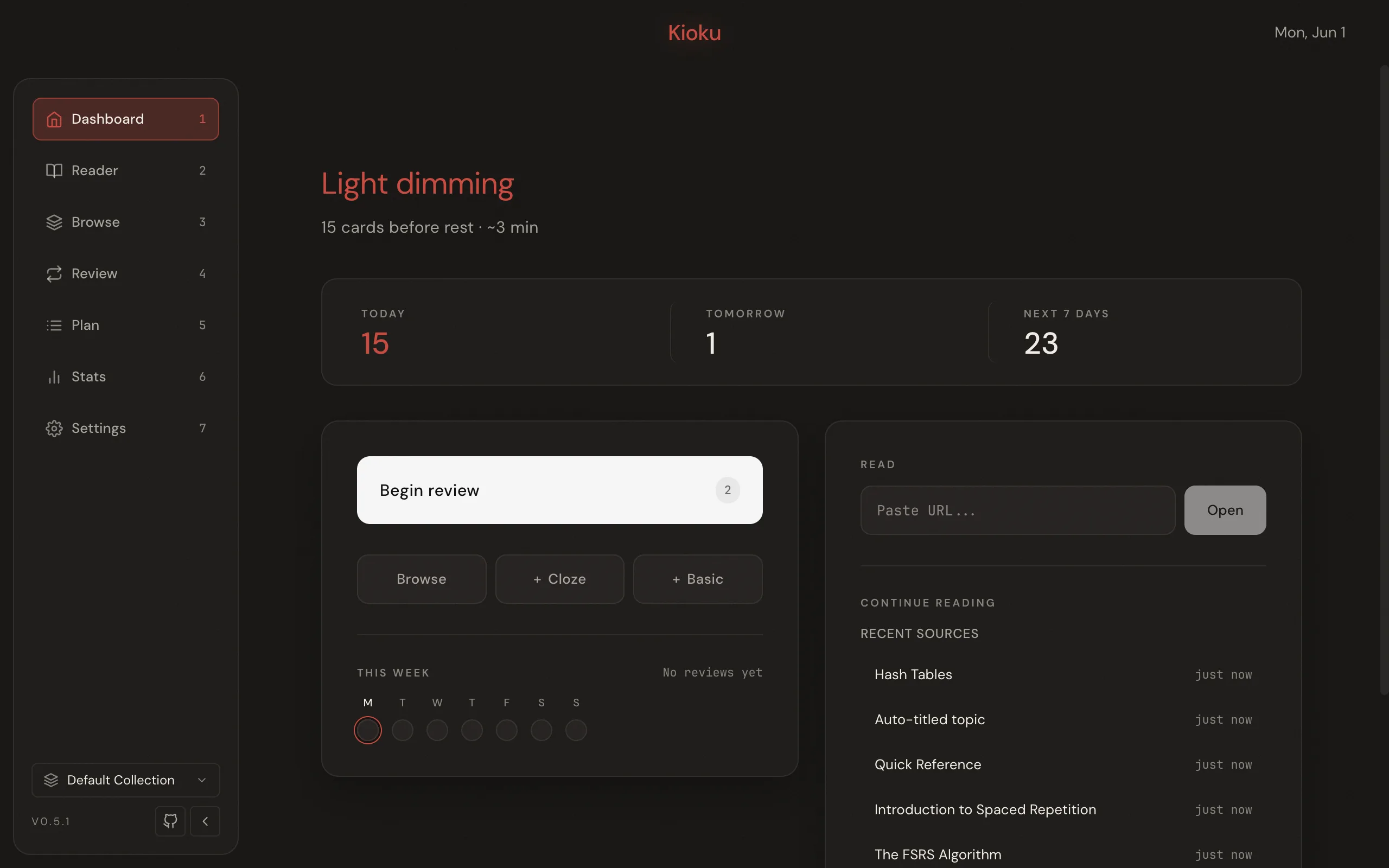
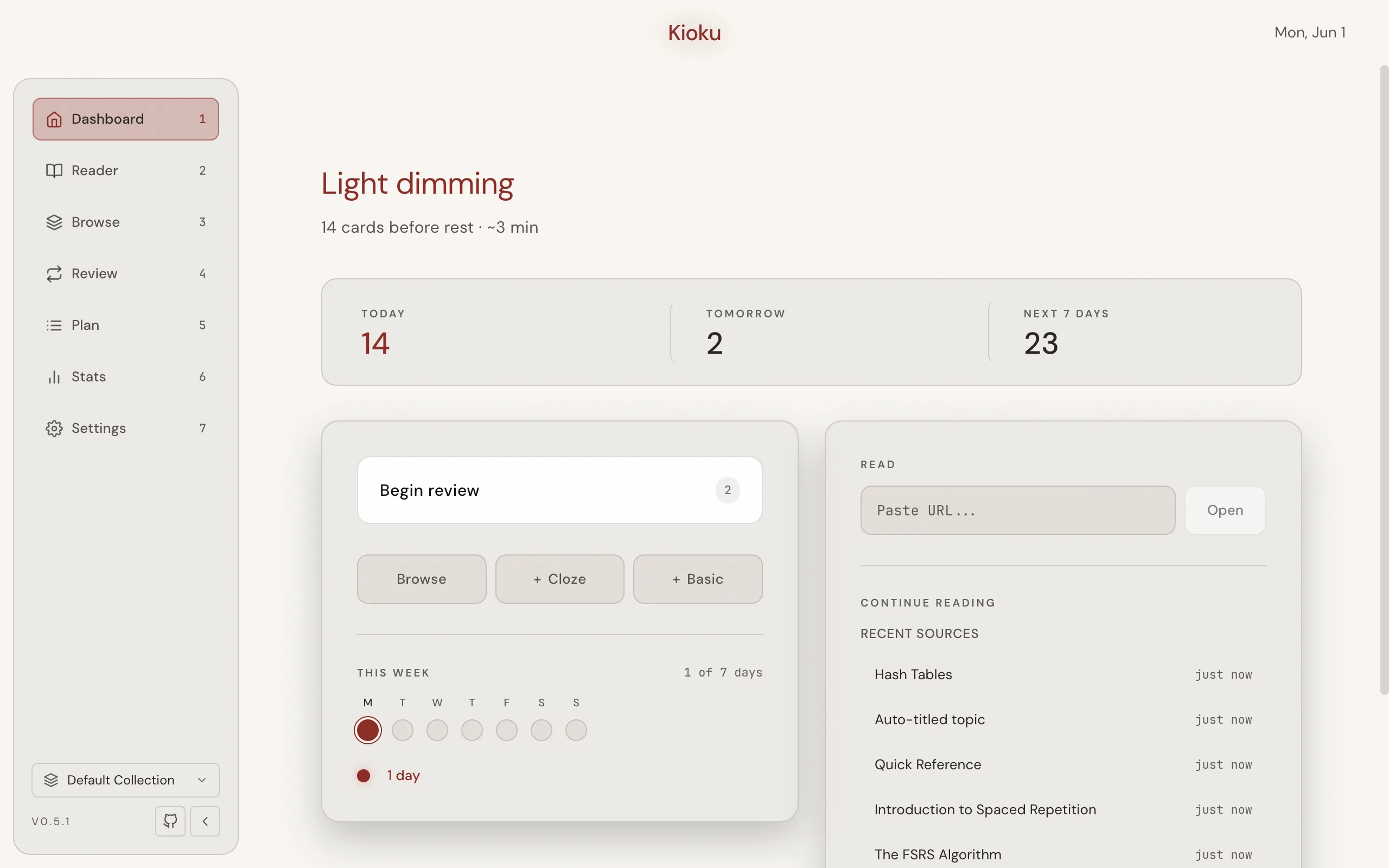
Dashboard gives an overview of your day and a quick way into a study session. The Today block shows how many Items and Topics are due, broken down into reviews, new cards, and topics, with Begin review to open Review; when nothing is due it reads All caught up with the time of the next review. Below it are the counts for Tomorrow and the Next 7 days, a This week activity strip with your streak, and + Cloze card and + Basic card, which open a quick Card editor. The right-hand panel has an Import to read field that imports a pasted URL into Reader (or Open without importing), and a Continue reading list of the Topics you read most recently. An empty Collection shows Import Anki deck (.apkg) instead.
Reader
Section titled “Reader”Nav key: 2. The incremental-reading and web-import workspace.
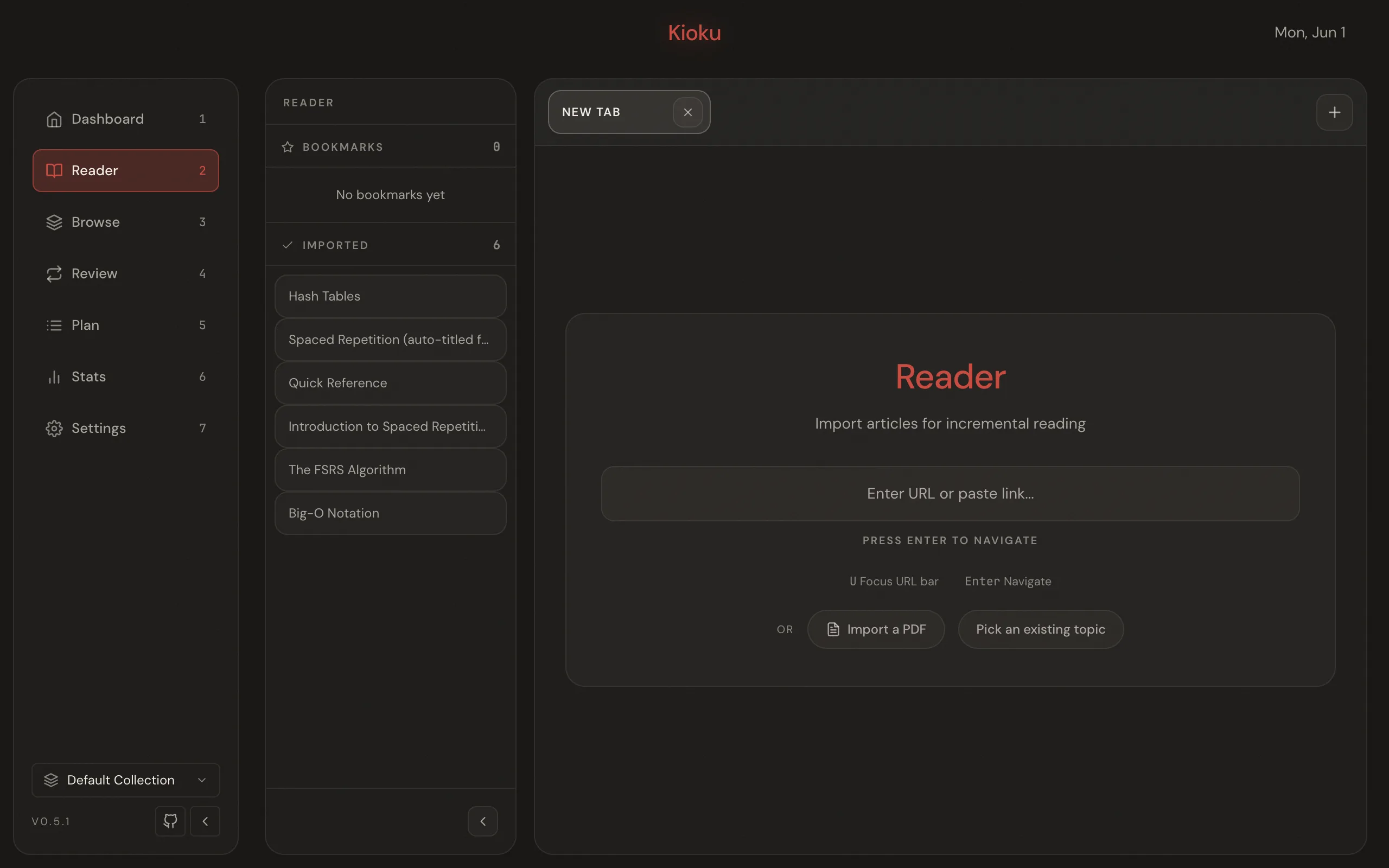
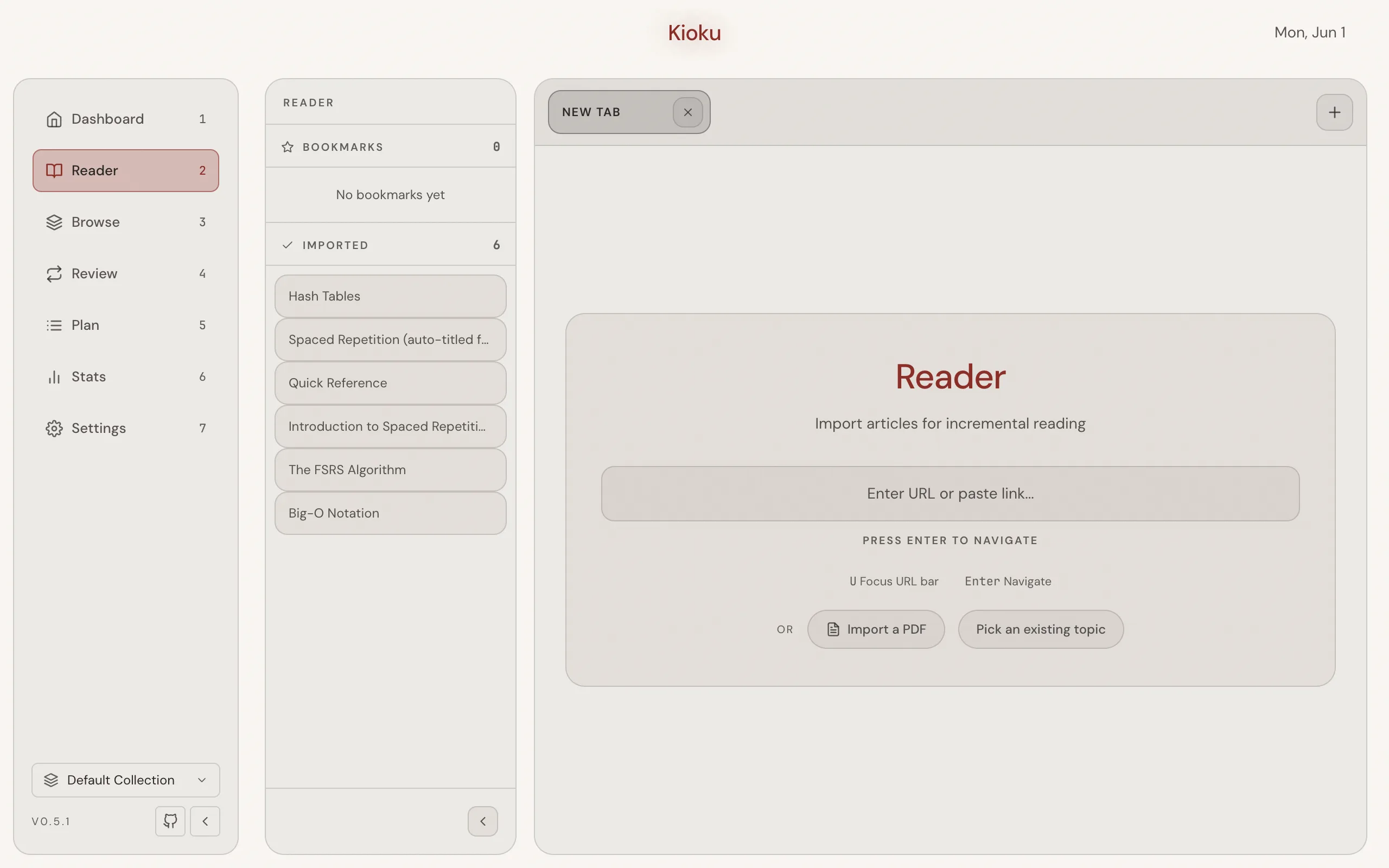
Reader loads web pages and imported PDFs in an embedded webview and lets you turn selected text into study material. Primary actions: search or navigate to a URL, go back or forward, refresh, import the current page, bookmark it, and create an Extract or a Cloze Card from a text selection. Extracts stay highlighted on the page, and open tabs are restored when Kioku restarts. Reader sits at 2 because incremental reading is Kioku’s differentiator. See Import a web page, Extract and cloze, and the Incremental reading concept.
Browse
Section titled “Browse”Nav key: 3. The knowledge-tree manager.
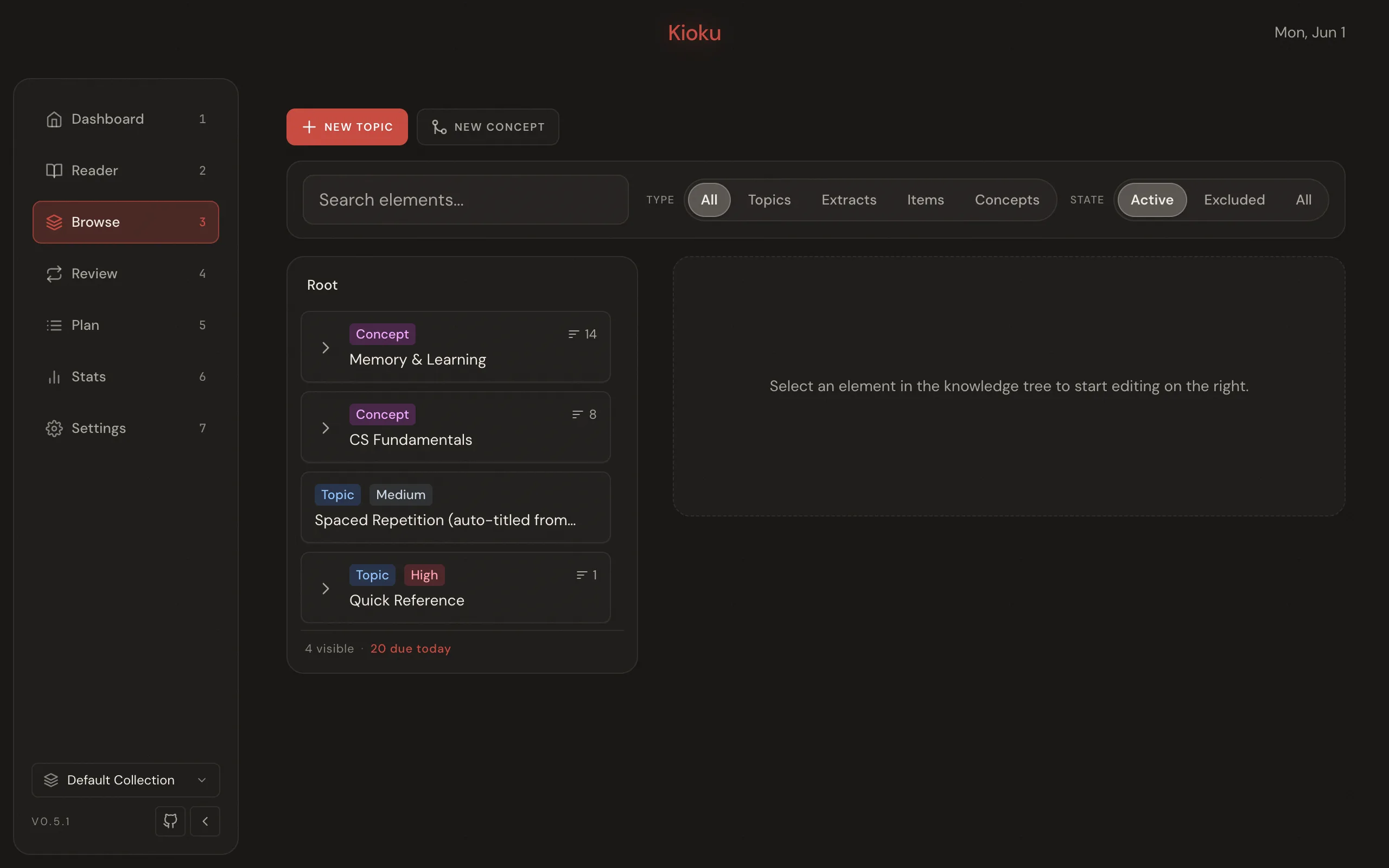
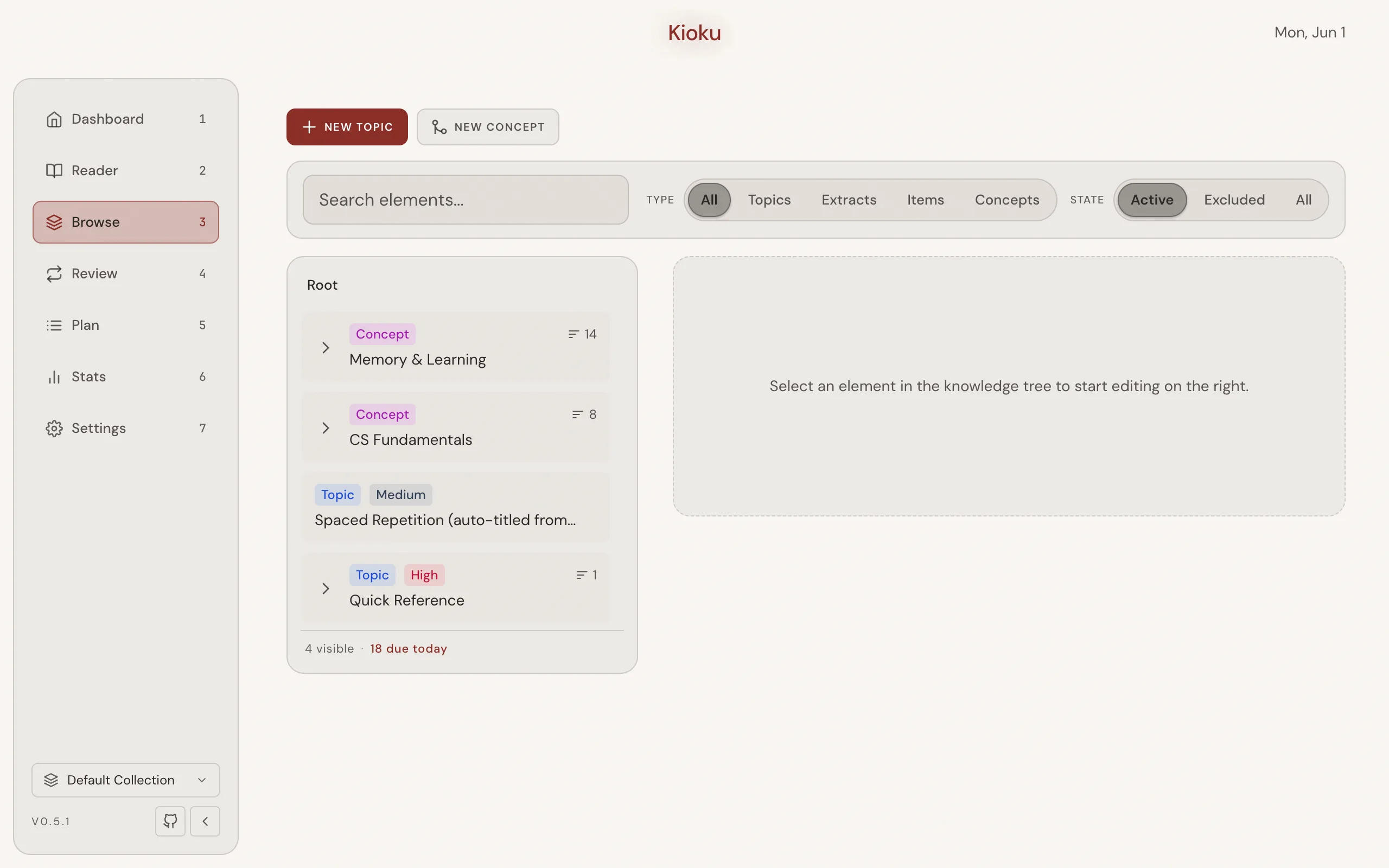
Browse is a two-pane workspace for exploring, organizing, and editing every Element in the active Collection. It fills the window: the toolbar, then a list on the left and the selected Element’s details on the right, each scrolling on its own. The list is a tree of Topics, Extracts, Items, and Concepts with drag-and-drop reordering and reparenting. Each row is one line: an icon for the Element’s type (a web page’s Topic shows its site), the title, and at the end the due date (or new for a Card not yet reviewed) and how many Elements are inside. Chips mark only what’s unusual: Live, Suspended, a Card still Learning, a priority set High or Low. Search and filter results add the Element’s path on a second line; the details pane is an inline editor plus a details panel with metadata, a priority slider, and per-Element actions. Drag the line between the panes to widen or narrow the list (or focus it and use the arrow keys); double-click it to go back to the default. In a narrow window the list sits above the details instead.
The toolbar has search (focus with /), the Type and State menus, and New topic, with New concept under its arrow. While you filter or search, the list’s header says how many Elements match, with Clear filters to return both filters to their defaults and, while searching, a Review button that starts an ad-hoc Review of the results. See the Elements concept.
The State filter picks what the tree shows:
- Active: everything in the review queue (the default).
- Suspended and Dismissed: a flat list of every suspended or dismissed Element, at any depth. Select a dismissed Element and choose Restore to Queue to bring it back.
- Trash: deleted Elements, one row per deletion.
- All: everything except the Trash.
Long lists load more rows as you scroll to the end, or with Show more. Every view other than the tree is a flat list: each row shows where it lives, and search highlights the match. Review these N starts an ad-hoc Review of the search results.
With Type set to Items, the list is a table of Cards, like Anki’s Browser: the question, its Topic (where it lives), when it’s Due, its Interval (from the last review to the next) and its Lapses (times forgotten; a leech’s count is red). Click a column’s heading to sort by it, and again to reverse it; the first click sorts soonest due, A to Z, or the longest interval and most lapses first. New Cards have no due date or interval yet, so they come last either way. The sort covers every Card, not only the rows loaded so far, applies to search results too, and is remembered. A Card whose question you edit keeps its place until the table is next sorted or loads more rows, so it doesn’t jump away while you’re on it. The table keeps its own width, wider than the tree’s to start; a narrow table drops the Interval column first, then Topic, then Lapses.
The details pane’s header says where the selected Element lives (each step selects that ancestor), its title, and one line about it: type, priority, when it’s due, and anything unusual such as Suspended. Every action on it is under ⋯, with its shortcut. A Card with no title of its own shows its preview instead of repeating its question as a heading. Details & actions sits beside the content when the pane is wide enough, below it otherwise. With nothing selected, the pane summarizes the Collection. A Topic’s or Extract’s text is ready to write in and saves as you go, with Saved and a word count below it; see Write and format text. A Card shows its question and answer as Review does, plus its Memory: state, stability, difficulty, reviews and lapses. Select several Elements with Cmd/Ctrl-click, Shift-click or Shift+arrow keys to suspend, move or delete them together, from the bar under the list (icons only when the list is narrow) or the details pane. Suspend applies to the active ones; when everything selected is already suspended it becomes Resume. New topic says where the Topic will go: inside the selected Element, or at the top level.
Deleting moves an Element and everything inside it to the Trash. The confirmation says how many Elements and Cards go with it, and the notice that follows has Undo. In the Trash, select a row to Restore it to where it was, or Delete forever. Empty Trash clears everything at once. Anything left in the Trash is deleted for good after 30 days.
Review
Section titled “Review”Nav key: 4. The spaced-repetition Review session.
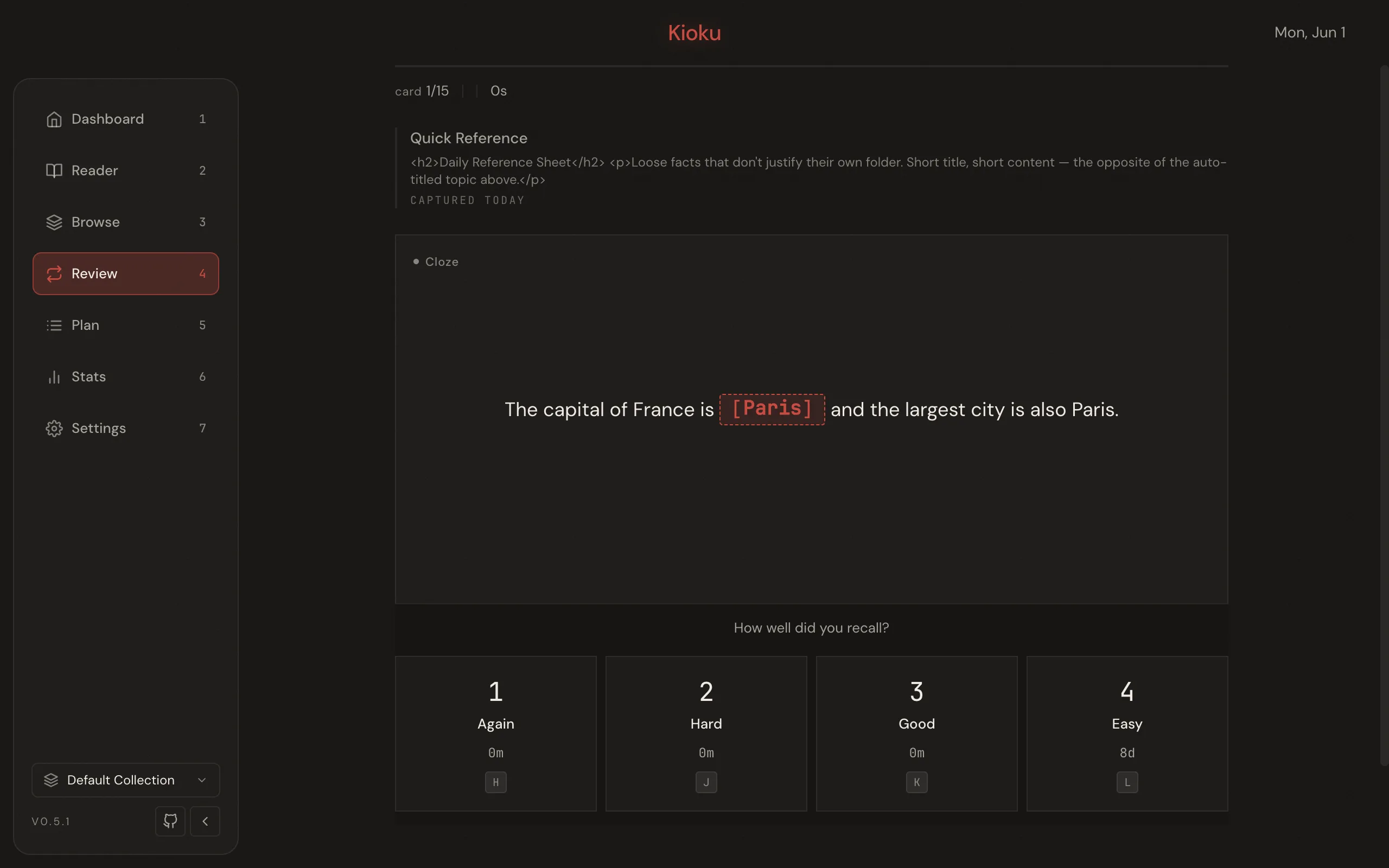
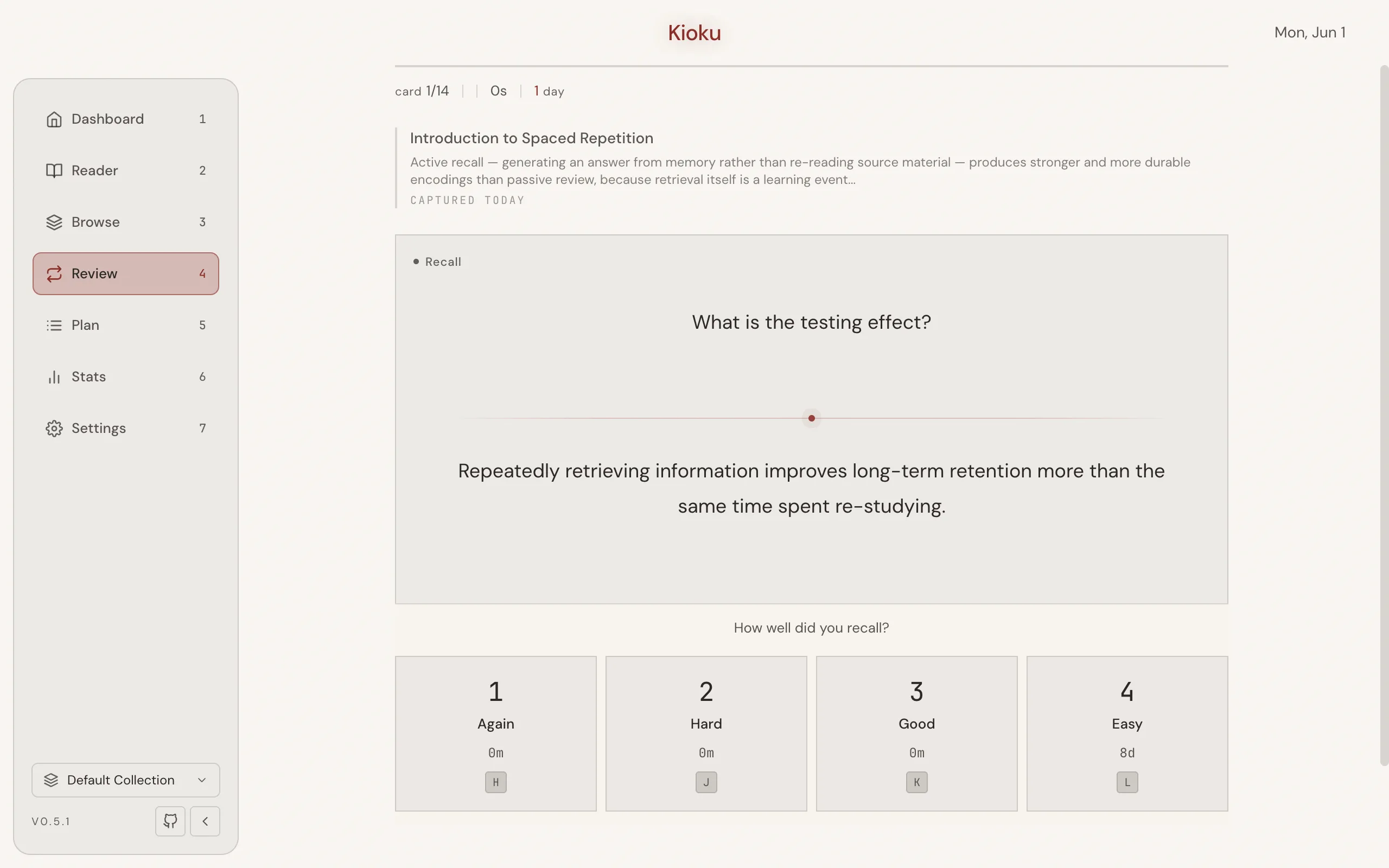
Review works through the due Queue of Cards, Topics, and Extracts. For Items you rate recall on a four-point scale: 1 Again, 2 Hard, 3 Good, 4 Easy. For Topics you choose a Topic action (read, extract, skip, done). A Topic’s text opens to read: select a passage and press X to extract it or Z to make a cloze, or press Enter to edit it. You can also undo the last Review, postpone, and set or jump to a read point. See Reviewing and the Review queue and Spaced repetition concepts.
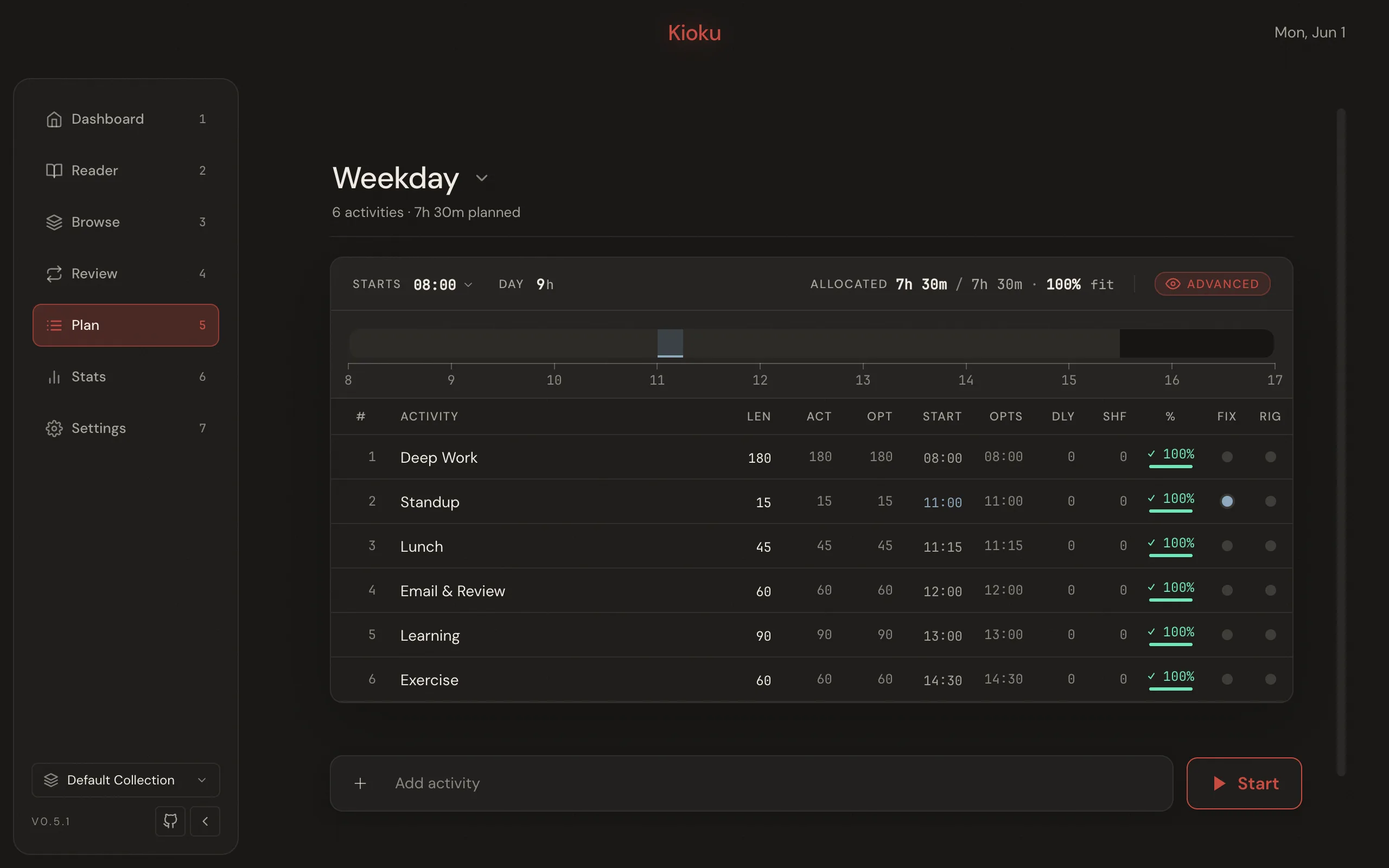
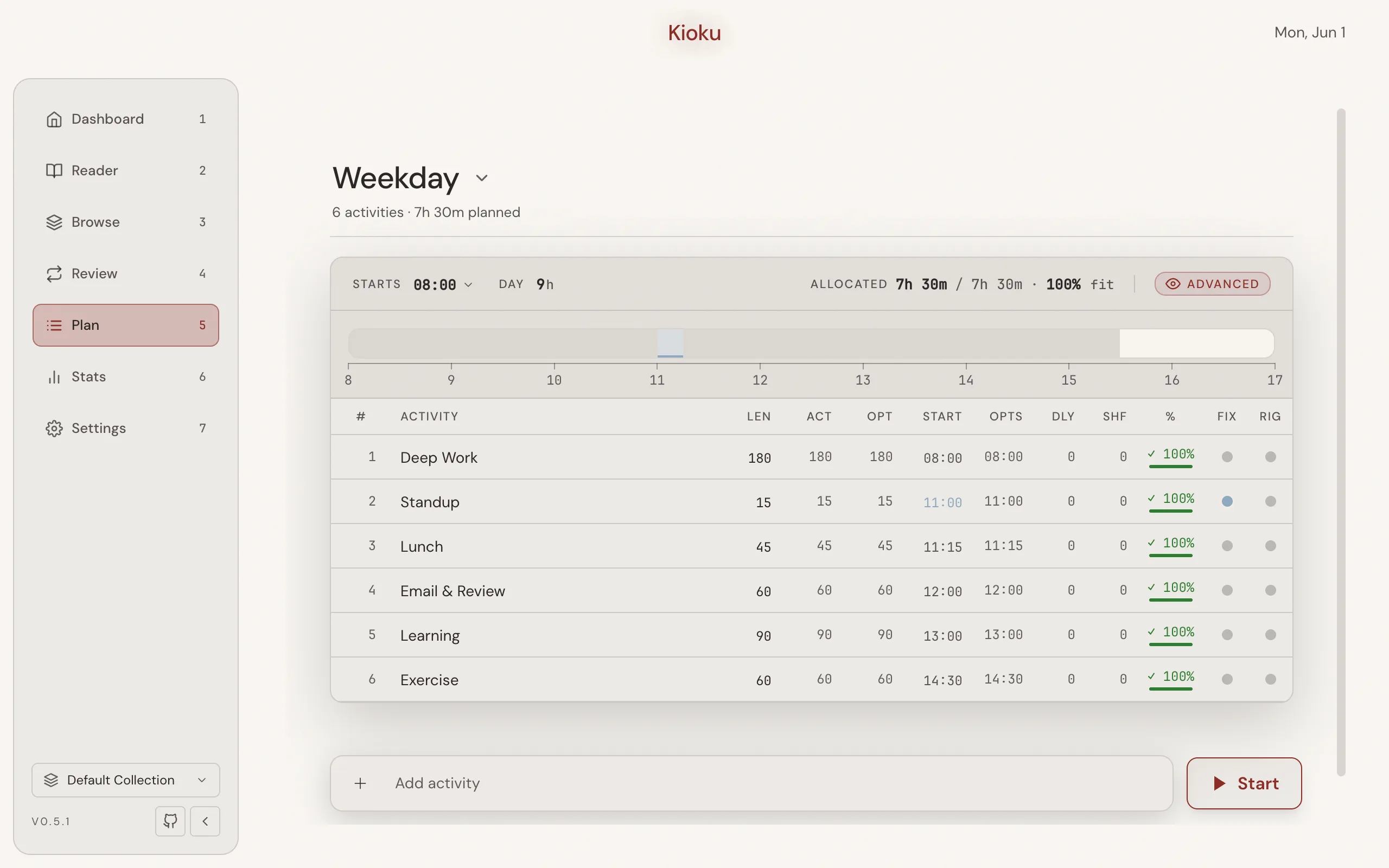
Nav key: 5. The daily-schedule planner.
Plan lets you build time-blocked activity templates and execute one as a live day. The page renders a template switcher, a schedule table of activities (with name, length, fixed start time, and rigid duration), and an execution view when a day is running. It distinguishes editing a template from running an execution, and has a statistics view and import/export. See the Plan guide.
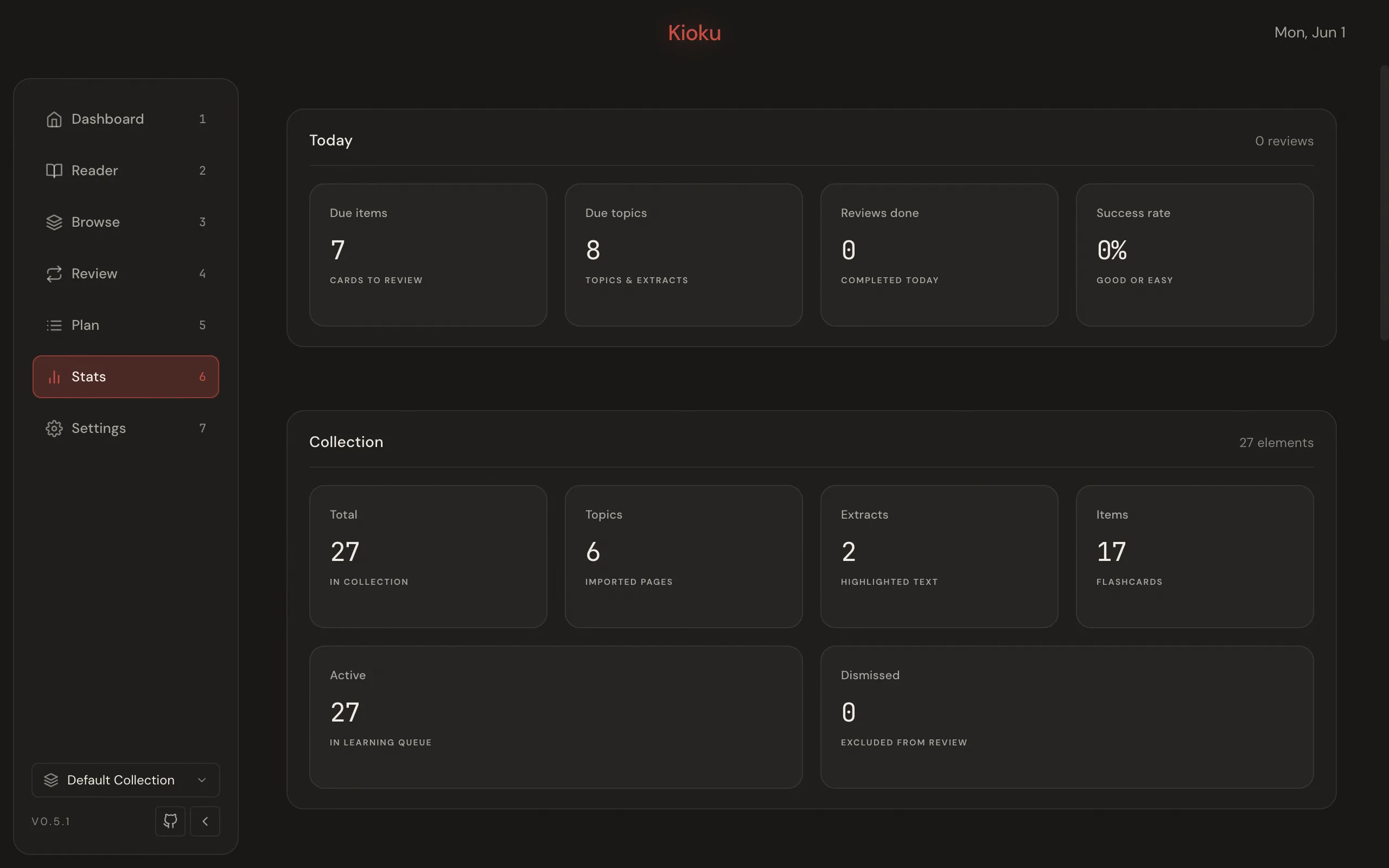
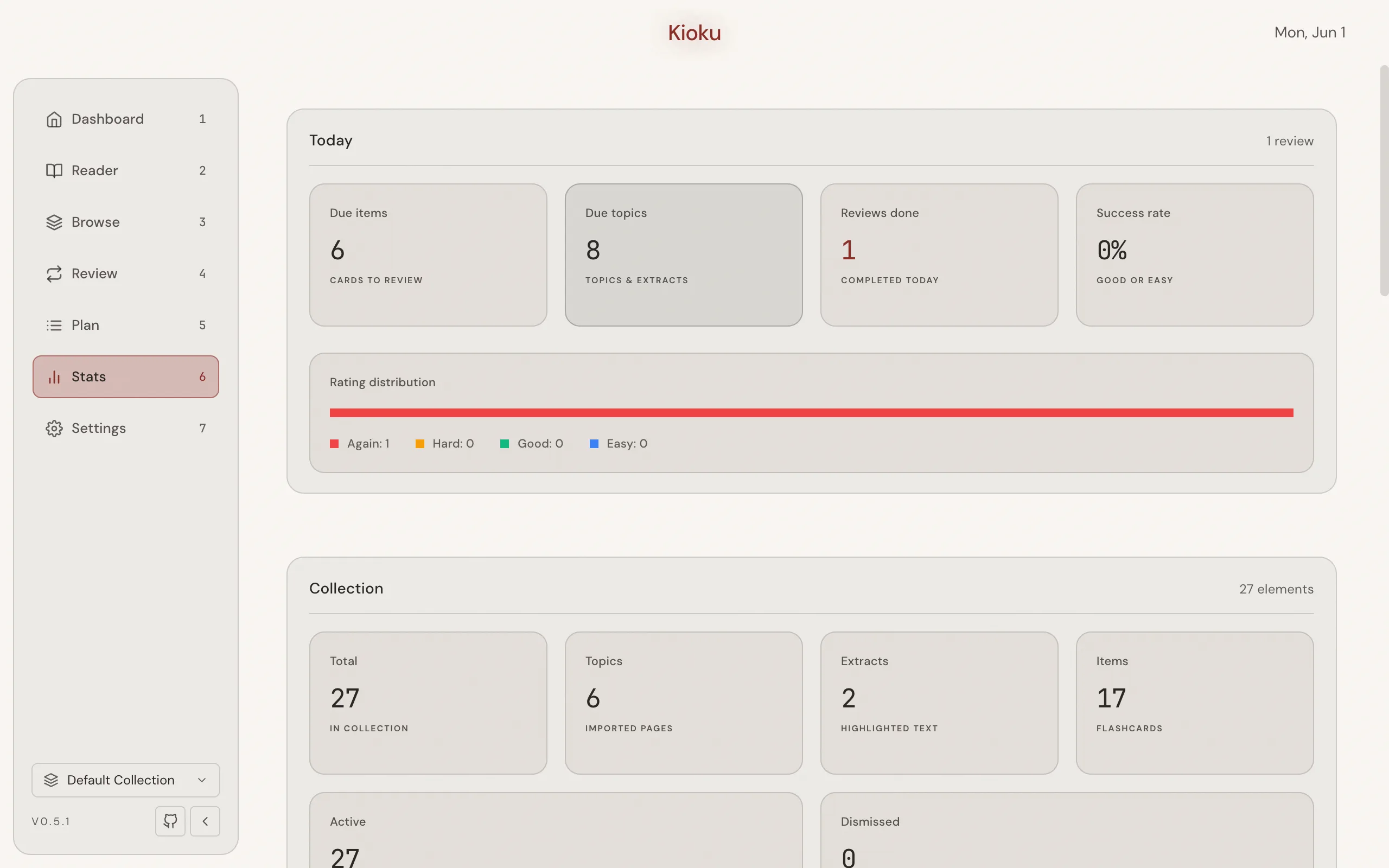
Nav key: 6. The read-only statistics dashboard.
Stats reports learning analytics for the active Collection; nothing here is editable. Sections cover Today (cards and Topics due, reviews done, success rate, and a rating distribution), Collection totals by type and status, Learning, Performance, Workload, Priority, and an Activity calendar of the last year.
Days follow your computer’s calendar: a session after midnight counts toward the new day. A few of the numbers, defined:
- Cards due is what your next session serves, counted as the Dashboard counts it: due reviews, plus new cards up to your New cards per session limit.
- Success rate is the share of today’s reviews you recalled: anything but Again (Hard counts as recalled, as it does in FSRS).
- Retention is the share of reviews of learned cards you recalled in the last 30 days, with how many reviews that is. It shows “—” until you have some.
- Days studied counts the days you reviewed at least once.
- Reviews a day estimates your daily load: what your learned cards need to stay learned, plus new cards at your per-session limit while any are left. New cards done says when the last of them comes in, at one session a day.
Settings
Section titled “Settings”Nav key: 7. App configuration.
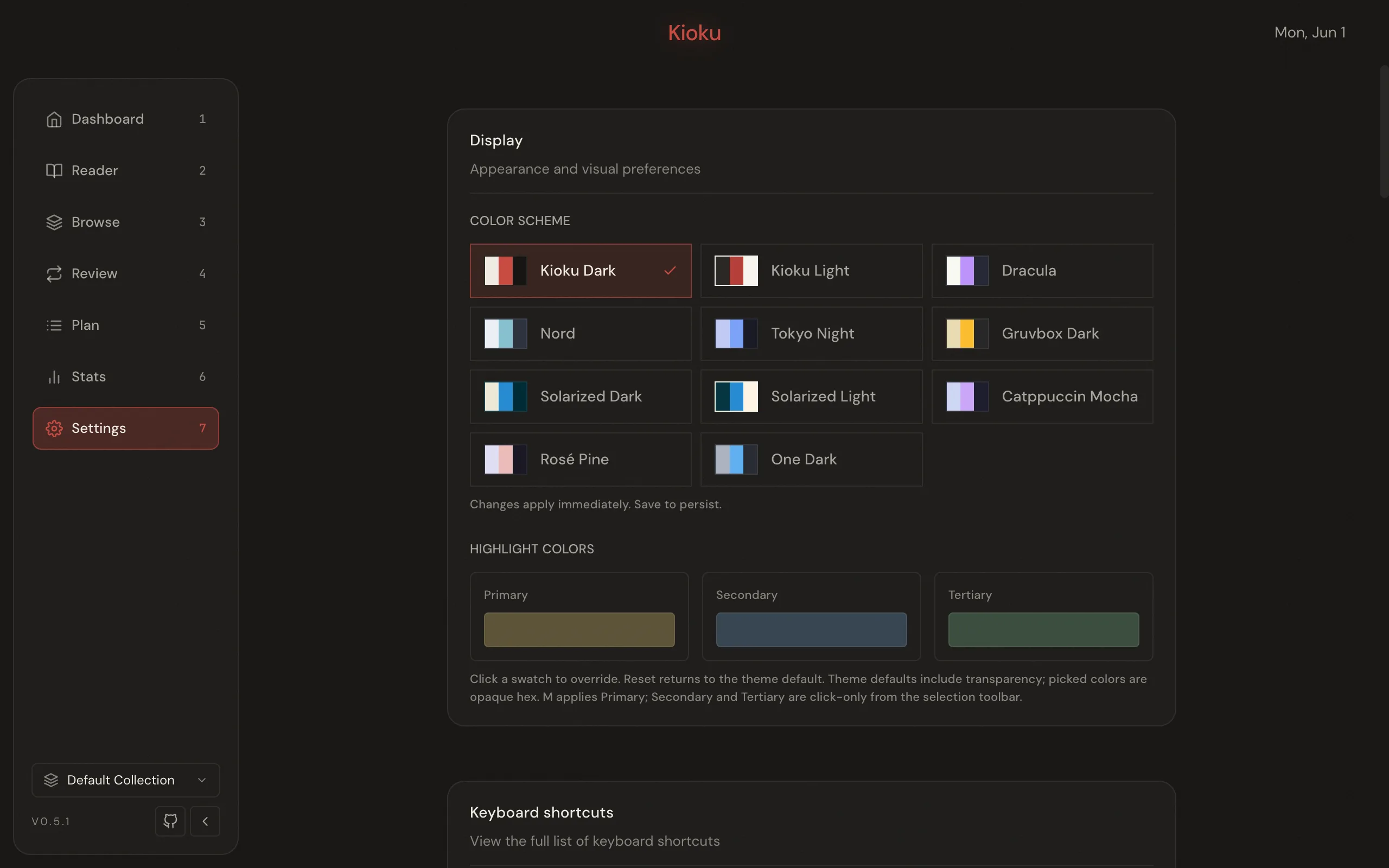
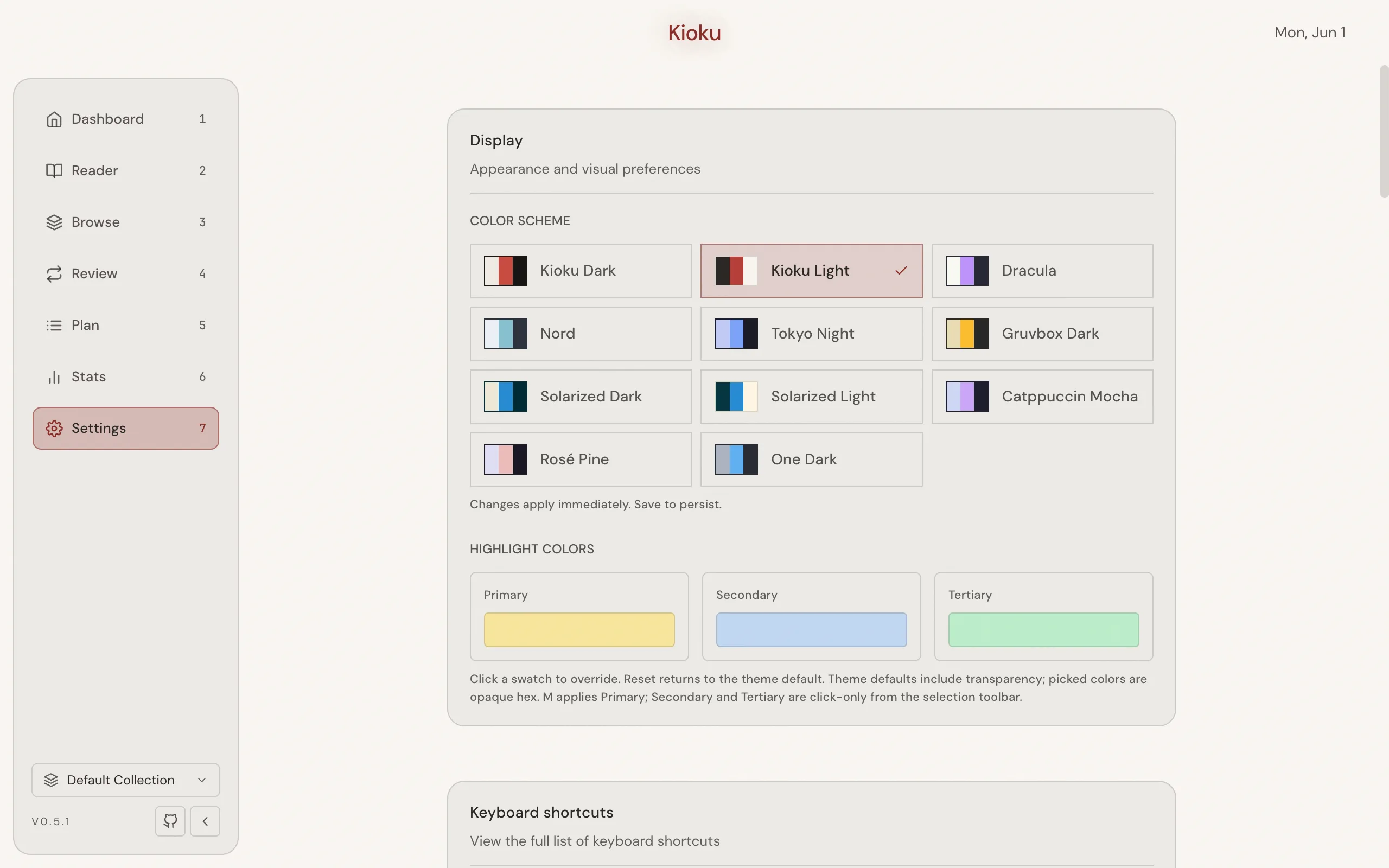
Settings adjusts appearance, scheduling, Queue behavior, Collections, and maintenance. It groups controls into sections: Display (color scheme and Highlight colors), Keyboard shortcuts (Show shortcuts), Item scheduler (desired retention and FSRS optimization), Topic scheduler, Queue, Auto-postpone, Import domains, Collections, Import & export, and more. Changes are buffered until you choose Save settings, and a sticky Unsaved changes banner protects against losing them. For the full enumeration of controls and defaults, see the Settings reference; for FSRS tuning, see Tune FSRS; for backups and exports, see Backup and export.
Related
Section titled “Related”- Keyboard shortcuts: the complete shortcut map by context.
- Settings reference: every Settings control and its default.
- Glossary: the canonical terms used above.