Review a session
Work through your due Queue. Grade each Item and act on each Topic.
Before you begin
Section titled “Before you begin”- You need at least one Item or Topic due. If nothing is due, the session opens straight to the empty screen.
- A review session interleaves recall (Items) and reading (Topics). They use different controls, covered separately below. For the why, see The review queue.
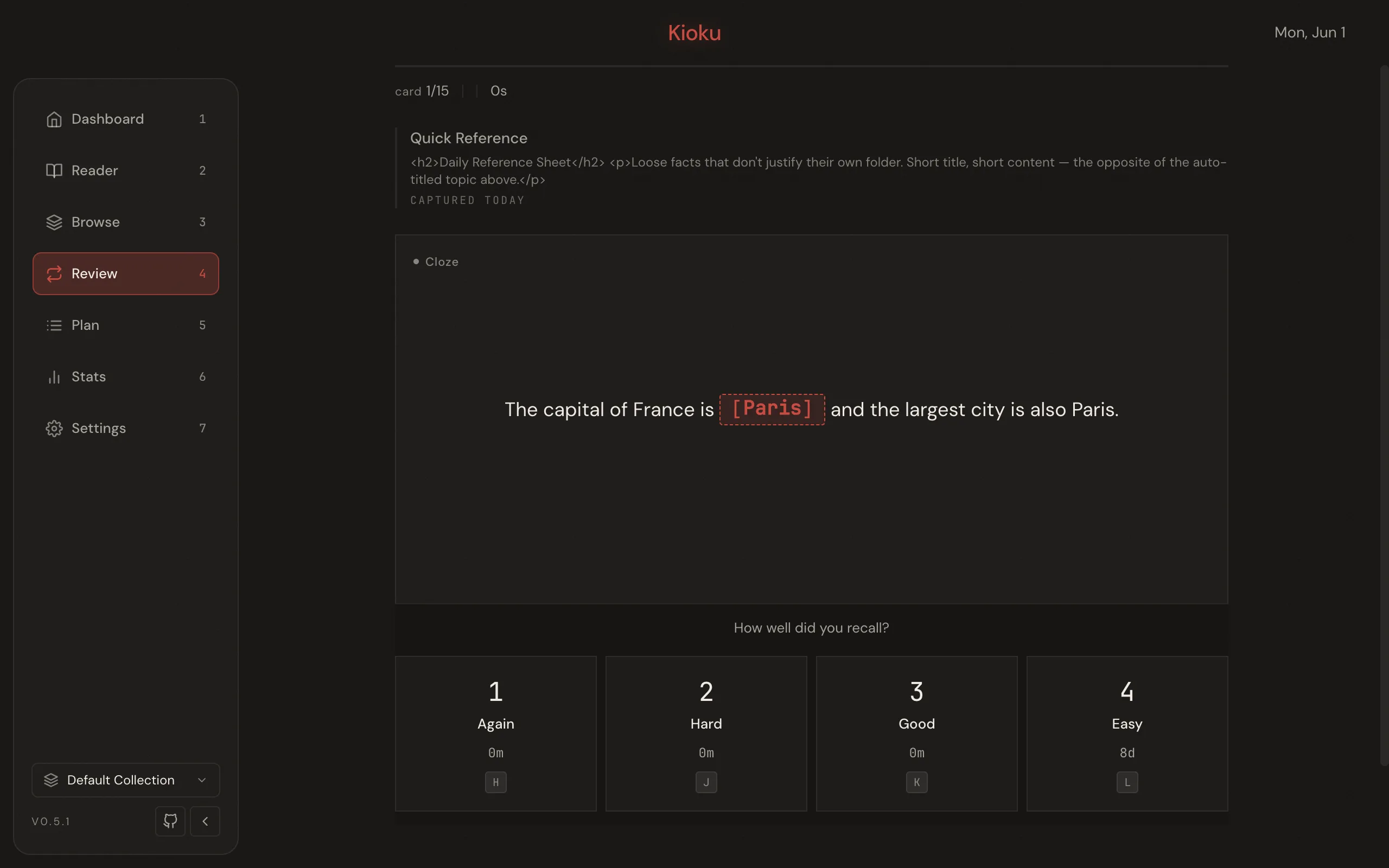
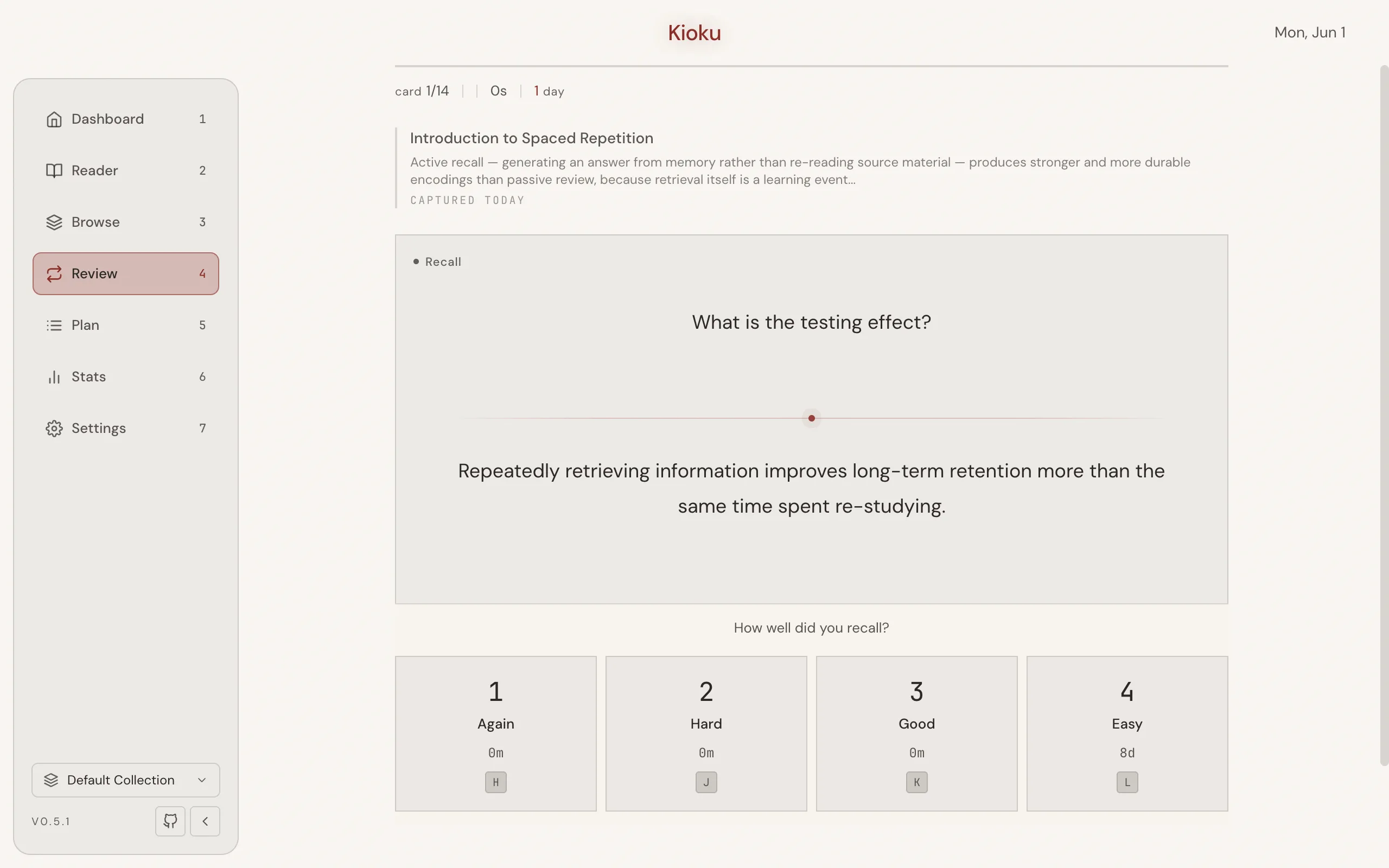
- Start the session. In the top bar, select Review (or press 4). Alternatively, on the Dashboard select Begin review. The session starts automatically and loads the first element.
- Reveal an Item. When a flashcard appears, Show answer sits below it. Press Space to show the answer, or select Show answer. You can also press Enter or click the card.
- Grade the Item with the buttons below it: Again, Hard, Good, or Easy. Press the digit 1 to 4, or use the home-row keys H (Again), J (Hard), K (Good), L (Easy). Each button previews the next interval (for example,
~10m,~8d,~2mo). Grading advances to the next element.
Work in a Topic’s text
Section titled “Work in a Topic’s text”A Topic’s text opens to read. Select a passage and press X to make an Extract, Z to make a Cloze, M to highlight it, I to ignore it on re-reading, or Delete to cut what you’ve finished with. A menu over the selection offers the same, with their keys.
To change the text itself, press Enter or select Edit. Letters type while you write, and the toolbar formats the text; press Esc or select Done to go back to reading. Your changes save as you go. See Write and format text.
Cards with audio
Section titled “Cards with audio”Review plays a Card’s audio the way Anki does:
- When a Card appears, the question’s audio plays.
- When you reveal the answer, the answer’s own audio plays. Audio shared with the question isn’t repeated.
- Press A to replay the side that’s showing. On the answer, that’s the question’s audio, then the answer’s.
- Each clip shows as a play button you can click. Clicking it doesn’t reveal the Card.
To stop audio from playing on its own, turn off Play audio automatically in Settings → Learning → Audio. A and the play buttons still work.
An audio cloze Card shows its recording as a waveform with the gap covered, and plays it with the gap hidden. Revealing it marks the gap, plays it on its own, and shows what was said. A then plays the whole clip, and the Play the gap and Play in context buttons play either one.
Undo a mistaken grade
Section titled “Undo a mistaken grade”Press U to undo your last Item grade. This restores the Card’s scheduling state and rolls back the session stats.
Reschedule the current element
Section titled “Reschedule the current element”To push the current Item or Topic to a later date instead of grading it, press P to open the Reschedule dialog. Pick a quick option (Tomorrow, +3 days, +1 week, or +1 month) or choose a date, then select Save. The element moves to the chosen due date and the Queue advances.
Result
Section titled “Result”You grade each Item and act on each Topic in turn. When the Queue is empty, the session summary appears with a Return to dashboard button. Press Esc at any time to end the session early.